Full deployment of Traefik Hub on Akamai - Linode Kubernetes Engine (LKE)
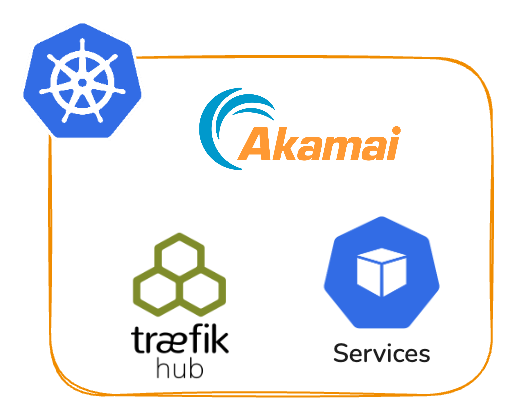
This project demonstrates the integration of Traefik Hub with API Management on Akamai Linode Kubernetes Engine (LKE), providing a complete solution for modern cloud-native API lifecycle management.
Overview
Linode Kubernetes Engine (LKE) is a fully managed Kubernetes platform that handles cluster management, automatic updates, and high availability while providing seamless scaling and native integration with Linode's load balancers and block storage.
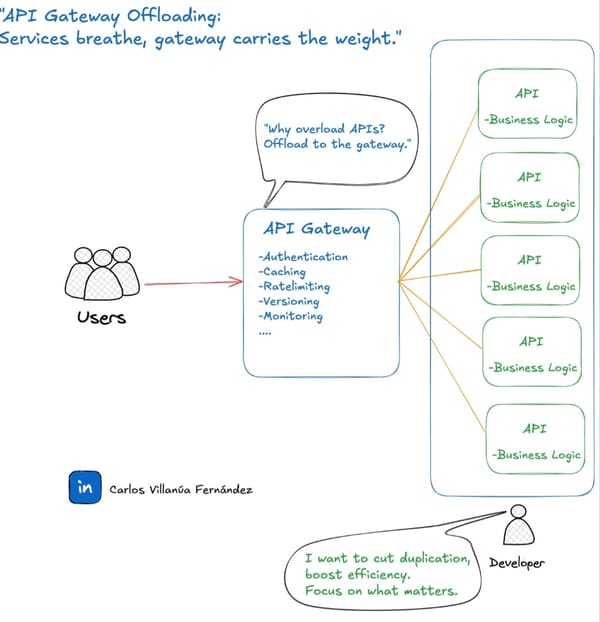
Traefik Hub extends the popular Traefik proxy with enterprise-grade API management capabilities, offering a complete API gateway solution with developer portal, API catalog, rate limiting, authentication, analytics, and advanced traffic management features.
This integration combines the simplicity and cost-effectiveness of LKE with Traefik Hub's powerful API management capabilities, creating a Kubernetes-native solution that scales automatically with your traffic demands while providing complete API lifecycle management from development to production.
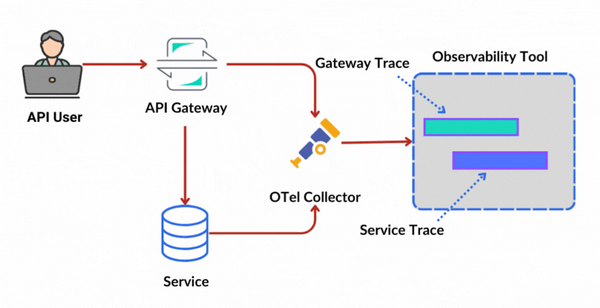
The deployment includes an LKE cluster with Traefik Hub as the ingress controller, API management components with a developer portal, sample HTTPBin API for demonstration, and a complete monitoring stack.
Prerequisites
- Linode CLI
- Terraform
- kubectl
- Linode API token
- Traefik Hub license
Deployment Steps
Step 1: Get Linode API Token
Generate an API token to allow Terraform to manage Linode resources:
- Go to Linode Cloud Manager
- Generate a new personal access token
- Copy the token for later use
Step 2: Get a Traefik Hub Token
Create a Traefik APIM gateway token to connect your cluster to Traefik Hub:
- Go to Traefik Hub
- Sign in or create an account if you don't have one
- Go to API Gateway > Gateways
- Create a new gateway token
- Copy the token for later use

Step 3: Deploy Infrastructure
Git clone the Traefik Hub on Akamai Kubernetes (LKE) repository
https://github.com/traefik-workshops/traefik-apim-lke.gitUse Terraform to create the LKE cluster and deploy Traefik Hub:
# Set your tokens (replace with your actual values)
export LINODE_TOKEN="<your-linode-token>"
export TRAEFIK_LICENSE="<your-traefik-license>"

# Initialize and deploy
terraform init
terraform apply -auto-approve \
  -var="lke_token=$LINODE_TOKEN" \
  -var="cluster_name=traefik-lke-cluster" \
  -var="enable_api_management=true" \
  -var="enable_offline_mode=false" \
  -var="traefik_license=$TRAEFIK_LICENSE"
Step 4: Verify Deployment
Confirm that all components are running correctly:
- Check the creation of your LKE cluster at https://cloud.linode.com/kubernetes/clusters

- Verify all pods are running:
# Check all pods are running
kubectl get pods --all-namespaces
- Confirm that the Traefik Hub Gateway is connected in the Traefik Hub UI:

Step 5: Deploy APIs, Plans and Portals
This step configures a complete API ecosystem including security policies, API definitions, subscription plans, and the developer portal:
# Get the cluster external IP
export LKE_CLUSTER_URL="$(kubectl get svc traefik -n traefik -o jsonpath='{.status.loadBalancer.ingress[0].ip}')"

# Set URLs for API portal and specs
export TRUSTED_URL="https://$LKE_CLUSTER_URL/portal"
export OVERRIDE_SERVER_URL="https://$LKE_CLUSTER_URL/httpbin"

# Deploy API Management components
kubectl apply -f traefik_apim/apimanagement/httpbin/1-middlewares.yaml          # Middleware configuration
envsubst < traefik_apim/apimanagement/httpbin/2-api.yaml | kubectl apply -f - # HTTPBin API definition
kubectl apply -f traefik_apim/apimanagement/httpbin/2-plans.yaml              # Subscription plans (free, premium, etc.)
kubectl apply -f traefik_apim/apimanagement/httpbin/3-catalog-items.yaml      # API catalog entries
envsubst < traefik_apim/apimanagement/httpbin/3-portal.yaml | kubectl apply -f - # Developer portal configuration
Step 6: Create a User in Traefik Hub UI
Set up user accounts for accessing the developer portal:
- Go to Traefik Hub
- Navigate to your workspace/cluster
- Go to API Management > Users
- Click Create User
- Fill in the required information
- Save the user
- For a managed application get the user_id from the URL. As per image below
- Add it to the environment variable: export TRAEFIK_HUB_USER_ID="<ADD USER ID>"


Step 7: Access to the API
Option 1: Managed Subscriptions and Applications
# Deploy sample applications with user configuration
envsubst < traefik_apim/apimanagement/httpbin/4-managed-applications.yaml | kubectl apply -f -

# Deploy sample subscriptions
kubectl apply -f traefik_apim/apimanagement/httpbin/4-managed-subscriptions.yaml
Learn more: https://doc.traefik.io/traefik-hub/api-management/managed-applications
Option 2: Self-Service
Follow the steps from this guide for configuration: https://doc.traefik.io/traefik-hub/api-management/self-service-subscription
Option 3: Using JWT and SSO
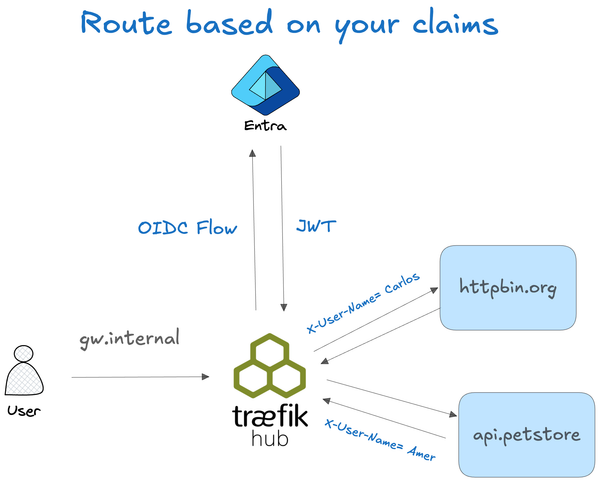
Follow the steps from this guide for configuration: https://doc.traefik.io/traefik-hub/authentication-authorization/idp/oidc
Step 8: Access Services
With everything deployed and users created, access the various components:
# Display service URLs
echo "Traefik Dashboard: http://$LKE_CLUSTER_URL:8080/dashboard/"
echo "API Portal: $TRUSTED_URL"
Access Instructions:
- Traefik Dashboard: Use the displayed URL to monitor traffic, routes, and services
- API Portal: Access the developer portal with your user credentials

Testing the API in the Developer Portal: A managed application has been created with the API key topsecrettoken for testing purposes.


Cleanup
terraform destroy -auto-approve \
  -var="lke_token=$LINODE_TOKEN" \
  -var="cluster_name=traefik-lke-cluster"